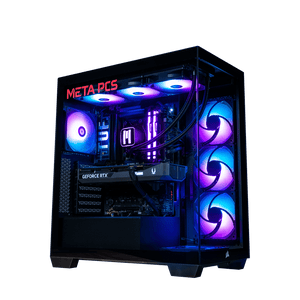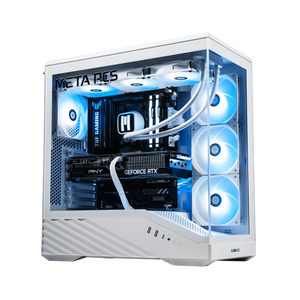




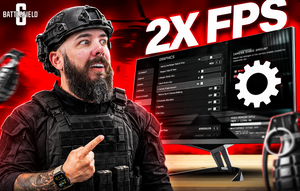
Battlefield 6 rewards specific in-game settings choices more than a new GPU does. The right five tweaks buy anywhere from 30 to 60 fps on a mid-tier card without touching enemy visibility, and a few of the settings that look expensive are actually cheap to leave on High. This is a settings-side guide, so we're skipping the "go buy a 5090" advice and giving you the exact per-setting values we run at the shop, and we cross-reference with external benchmarks where they exist. Before any of it works, you need Secure Boot enabled, which is the first hurdle for most new BF6 players and the topic of the video below.
Prerequisite: Secure Boot has to be on
BF6's anti-cheat requires Secure Boot, TPM 2.0, HVCI-capable, and VBS-capable per EA's official system requirements. If any of those are disabled the game refuses to launch, and "disabled by default" is unfortunately the state a lot of prebuilt and DIY systems ship in. The video above walks through the fix in about two minutes, including the MBR-to-GPT conversion most people need to do first. There's a longer written walkthrough with per-motherboard notes on the META PCs help article if the video's pace isn't your speed. Everything below assumes you're past this gate.
One thing worth flagging up front: SteamOS and other Linux distributions are locked out of BF6 because the anti-cheat's Secure Boot path is Windows-only. If you were considering the SteamOS route we covered a few weeks back, BF6 is one of the exceptions to that story.
The three settings that buy the most FPS in BF6
Some BF6 settings cost 15 fps. Others cost one. Knowing which is which is where the frames actually come from. In our shop testing across the RX 9060 XT, RX 9070 XT, and RTX 5070 tier, three settings consistently give back the most fps when dropped, and all three are things you barely notice mid-firefight.
Volumetric Quality: Low. The fog, dust, smoke, and light-scatter effects are gorgeous in cinematics and expensive in gameplay. Dropping from Ultra to Low is one of the single biggest fps wins in the entire settings menu, and mid-match you're focused on enemy silhouettes, not the god rays. GameSpot's optimization guide flags this as one of the highest-impact settings and we've seen the same pattern in every BF6 build we've benched.
Lighting Quality: Low. This one hits the same way as Volumetric. Dynamic lighting on Ultra is a real frame killer, and BF6's maps look almost identical on Low from a competitive distance. It's the setting most people leave on High out of habit and lose 15 to 25 fps for nothing.
Post Processing Quality: Low. Depth of field, bloom, and lens effects are the visual clutter that makes it harder to pick out enemies at range. Dropping this buys fps and clears out the effects that hide targets, so it pulls its weight twice.
Settings you should leave on High for enemy visibility
The instinct to slam every setting to Low is where most competitive-settings guides go wrong. Two settings should stay high because they help you spot enemies, and the fps cost is small.
Texture Quality: High. TechSpot's 43-GPU benchmark noted that 8GB cards "suffered noticeably even at High settings" and recommended 12GB VRAM as the floor for consistent performance. That's on the card, not the settings menu. If you have 12GB or more, keep textures High. Enemy models, weapon skins, and terrain read cleaner, which matters more than the marginal fps you'd gain by dropping.
Texture Filtering: High or Anisotropic 16x. Cheap on modern GPUs, big impact on how surfaces read at distance. Not the setting to drop for fps.
Competitive display and input settings
These don't move fps much. What they do is clean up your view so enemies stop hiding behind visual effects, and remove input lag.
Field of View: 110 to 115. Wider FoV means more peripheral vision and faster target acquisition. BF6's default sits on the cinematic side, and 110 to 115 is what competitive players run.
World Motion Blur: 0. Weapon Motion Blur: 0. Motion blur exists to make screenshots look cinematic. It hurts you in a firefight by hiding enemies during fast movement and adding latency to how your brain reads the frame.
V-Sync: Off. V-Sync adds input lag. If you're getting screen tearing, use G-Sync or FreeSync on your monitor instead (both require monitor support). Leave V-Sync itself off.
Screen Space Reflections and Screen Space AO/GI: Off. Both are pretty in still shots and expensive in fights. Turn them off for competitive play.
DLSS 4 vs FSR 4 in Battlefield 6
BF6 supports both. Which one you use is decided by your GPU (DLSS is NVIDIA-only, FSR runs on everything), and both deliver real fps gains. TechSpot measured a 40% performance boost from Quality-mode upscaling on the RTX 5060 Ti in their 43-GPU BF6 benchmark.
On image quality, we've found DLSS 4 tends to produce sharper motion in our own side-by-side testing. FSR 4 is close and holds up well overall, just a touch softer on fine detail at range. The gap is real but not enormous, and for high-refresh competitive play the fps gain matters more than the pixel-peep quality difference either way.
On NVIDIA, run DLSS 4 Quality at 1440p and DLSS 4 Balanced or Performance at 4K if you need more frames. On AMD, run FSR 4 Quality at 1440p and Balanced at 4K. Skip Frame Generation for competitive multiplayer. Frame gen adds input latency. That's tolerable in single-player and it kills you in an FPS.
Recommended settings by resolution
The starting point for each resolution tier, based on our benchmarking and cross-referenced against TechSpot's 43-GPU test.
1080p Battlefield 6 Settings
Overall preset High as a starting point, then drop Volumetric, Lighting, and Post Processing to Low. Motion Blur off, V-Sync off, FoV 110. Upscaling optional at 1080p. Target: 200+ fps on an RTX 5070 Ti or RX 9070 XT per TechSpot, 130+ fps on an RTX 5070.
1440p Battlefield 6 Settings
Same three-setting drop as above. Textures stay High. Add DLSS 4 Quality (NVIDIA) or FSR 4 Quality (AMD). Target: around 150 fps on an RTX 5070 Ti or RX 9070 XT per TechSpot, and roughly 140 fps on an RTX 5070 in the same test. Sweet spot resolution for BF6 in our experience.
4K Battlefield 6 Settings
For 4K, keep the High preset and the same three-setting drops, then lean on DLSS 4 Balanced or FSR 4 Balanced to close the gap. Realistic target lands between 60 and 100 fps on an RTX 5080 or RX 9070 XT depending on the map, with the 9070 XT relying more heavily on FSR to hold that line. TechSpot's testing found the RTX 5090 is the only card delivering true high-refresh 4K at higher presets, so if 4K/144 is the ask, that's the tier.
What we build for BF6 players
The BF6-optimal spec depends on your monitor and how competitive you play. Three tiers we point buyers at, all Windows 11 because SteamOS is locked out for BF6.
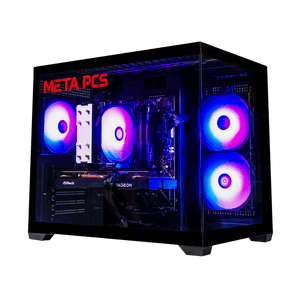
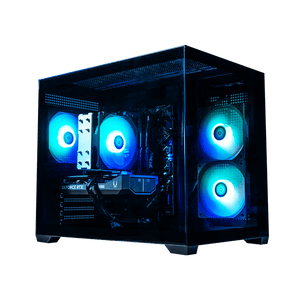
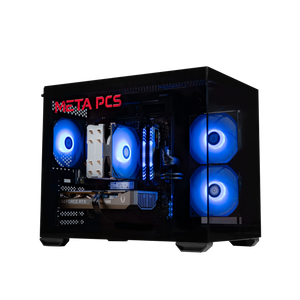
For 1080p high refresh, the Phantom v4 (RTX 5060 Ti 16GB + Ryzen 5 9600X) handles BF6 on the settings above at well over 144Hz and clears the 12GB VRAM floor with room to spare. The 16GB variant matters here since 8GB cards get punished in BF6 even on High per TechSpot.
For 1440p high refresh, the Nightwalker v2 (Ryzen 7 7800X3D + RX 9070 XT + 32GB DDR5) is the sweet spot rig. Per Tom's Hardware, an RX 9070 XT-class card paired with an X3D chip is the profile BF6's Ultra tier calls for. This is the build we recommend most for serious BF6 players.
For 4K or 240Hz 1440p, custom-configure through our PC builder with a 5080 or 5090 on top of a 9850X3D or 9800X3D. Full range on the ready-to-ship page. Every build ships with Secure Boot pre-enabled, so BF6 works out of the box without the BIOS trip.
FAQ
Why is my Battlefield 6 FPS so low even on good hardware?
Nine times out of ten it's the Volumetric, Lighting, and Post Processing settings sitting on Ultra. Drop those three to Low and most builds recover 30 to 60 fps. If you're still low after that, check that Resizable BAR is on in BIOS (see our free FPS boost article for the how-to). One more thing worth checking: BF6 streams a lot of assets, so a slow SATA SSD or a near-full NVMe drive causes mid-match hitching that looks like an fps problem. Make sure the game is on a Gen 3 or Gen 4 NVMe with headroom left.
Should I use DLSS or FSR in BF6?
Whichever your GPU supports. DLSS is NVIDIA-only. FSR runs on AMD, NVIDIA, and Intel. Both deliver around a 40% fps gain in Quality mode per TechSpot's benchmarks. On NVIDIA, we've found DLSS 4 to be the sharper option in our own testing, though the gap on FSR 4 is small.
Is 8GB of VRAM enough for Battlefield 6?
Not really. TechSpot's benchmarking found 8GB cards "suffered noticeably even at High settings." 12GB is the practical floor for consistent BF6 performance, and 16GB is the smarter buy for anyone running 1440p or higher.
What's the best CPU for Battlefield 6?
BF6 scales well on modern chips and doesn't punish mid-tier CPUs the way some Frostbite titles have. The Ryzen 5 9600X handles it fine at 1440p. For 240Hz competitive at 1080p, an X3D chip like the 7800X3D or 9800X3D pulls ahead thanks to the 3D V-Cache advantage in high-refresh esports scenarios.
Can I play Battlefield 6 on SteamOS or Linux?
No. BF6's anti-cheat requires Windows-side Secure Boot and TPM 2.0, and neither works on Linux distributions. If BF6 is a must-play, the SteamOS route is off the table for now.
Ready to build
BF6 punishes bad settings choices more than it punishes tight budgets. Drop Volumetric, Lighting, and Post Processing to Low, keep Textures on High, turn off Motion Blur and V-Sync, and add DLSS 4 or FSR 4 Quality mode. That's the recipe for a smooth, high-refresh BF6 session on almost any modern card. If your build predates 2020 and won't take those settings past 60 fps, that's when a hardware upgrade earns its money.
Every META PCs system ships with Secure Boot, TPM 2.0, and Resizable BAR configured from the factory, so BF6 plays without the BIOS trip. If you're weighing prebuilts more broadly, our Best Prebuilt Gaming PC guide covers what separates a good one from a bad one, and if you're spec'ing for 1440p specifically (which is where BF6 shines), the 1440p buying guide walks through the exact GPU tier per refresh rate. When your new machine lands, the first six things to do covers the rest of setup before you queue up your first match.